Split an Excel Sheet Into Multiple Files Based on a Column Value
The TidyCell Team · Reviewed July 21, 2026
To split one Excel sheet into multiple files by a column value, group the rows by that column and save each group as its own file. You can do it by hand with repeated filters, automatically with a PivotTable's Show Report Filter Pages command, or with Power Query. For many values at once, a tool like TidyCell buckets the rows and exports one file — or one worksheet tab — per value in a single step, with a preview first.
A worked example: one file per Region
Say you have a single master list of orders, and you want to hand each regional manager only their own rows. The source sheet looks like this:
| Order ID | Customer | Region | Amount |
|---|---|---|---|
| 1001 | Northwind Traders | East | $1,240.00 |
| 1002 | Contoso Ltd | West | $980.50 |
| 1003 | Fabrikam Inc | East | $2,115.00 |
| 1004 | Adventure Works | Central | $640.00 |
| 1005 | Contoso Ltd | West | $1,725.75 |
| 1006 | Tailspin Toys | Central | $310.20 |
The goal is three outputs — an East, a West, and a Central file (or three worksheet tabs in one workbook), each containing only that region's rows and a copy of the header row. Everything below is just different ways to get there.
The native Excel methods, done correctly
1. Filter and copy by hand
Turn your data into a Table (Ctrl+T) or switch on AutoFilter, filter the Region column to a single value, select the visible rows, and copy them into a new sheet or workbook. Repeat for each value. Honestly, for two or three categories this is the fastest option — no add-in, no code. It only becomes painful when there are many values or you have to redo it every month.
2. PivotTable → Show Report Filter Pages
Select your data and insert a PivotTable, then drag the Region field into the Filters area. With the PivotTable selected, go to PivotTable Analyze → Options ▾ → Show Report Filter Pages, choose Region, and Excel creates one worksheet for every region automatically. It's a genuine one-click native answer for splitting into tabs. The catch: each new sheet holds a PivotTable summary, not a raw copy of your original rows — great for per-region subtotals, less so when you need the untouched detail rows. To get raw rows you would double-click a total to drill through, or lay the pivot out in tabular form.
3. Power Query (Get & Transform)
Load the table with Data → From Table/Range, then either Group By the Region column, or right-click the query and choose Reference to make one query per region and filter each to a single value. Power Query is the most robust and repeatable route — when the source refreshes, the outputs refresh with it. Producing one actual file per group, though, means either repeating the reference-and-filter for each value by hand or writing a little M code (Table.Group), so it's powerful but not exactly one click.
4. A VBA macro
A short macro can loop over the unique values and save one workbook each, or simply call PivotTable.ShowPages "Region". This is the right tool if you'll run it repeatedly and you're comfortable with code — but it means enabling macros and maintaining a script. On Microsoft 365 you can also pull a single region into another sheet in-grid with FILTER, which is a clean answer for just a couple of categories.
Watch out for these before you split
- File names. Category values become file or tab names, so a value with
\ / : * ? " < > |will break a filename, and worksheet-tab names are capped at 31 characters. Decide how odd or duplicate names get handled. - Blank category values. Rows with no value in the split column are easy to lose. They need their own "blank" bucket, or they silently vanish from every output.
- The header row. Every output file needs its own copy of the header row — a copy-paste of just the filtered rows will forget it.
- Formatting and formulas. Copy-paste tends to flatten number formats, and formulas can break when rows move to a new sheet and their cell references shift. If the original workbook matters, work from a copy.
When a tool like TidyCell is worth it
Reach for TidyCell when the manual route stops being practical:
- Many distinct values — a dozen regions, or every month, customer, or status — where filtering by hand is a chore.
- Repeat work — the same split on next month's export.
- You want to see the parts first — a preview of exactly which buckets you'll get, and how many rows each holds, before you commit to any download.
- You want your real workbook back — formulas, number formats, and your other sheets intact, not a flattened copy.
How Split Sheets actually works
Open your file on the TidyCell cleaner — it opens right in your browser; nothing is uploaded. Open Split Sheets and:
- Choose By value and pick the Region column. TidyCell reads the distinct values and shows one bucket per region with a live row count — that's your preview and your estimated output count, before anything downloads.
- Pick your output: Separate files (one download per region) or One file with worksheet tabs (a tab per region in a single workbook).
- Download. Each part keeps your real file — the header row, number formats, formulas, and any other sheets ride along.
There's also a By date option, which splits rows older or newer than a date you choose into two parts you name (handy for pulling an archive off a live list). A few honest limits: splitting by value is offered for columns with up to about a dozen distinct groups (so it won't try to make thousands of files from an email or ID column); the "one file with worksheet tabs" output is for plain data files; and files built around charts, pivot tables, or Excel Tables aren't supported for row-splitting yet. Split Sheets is a Pro feature.
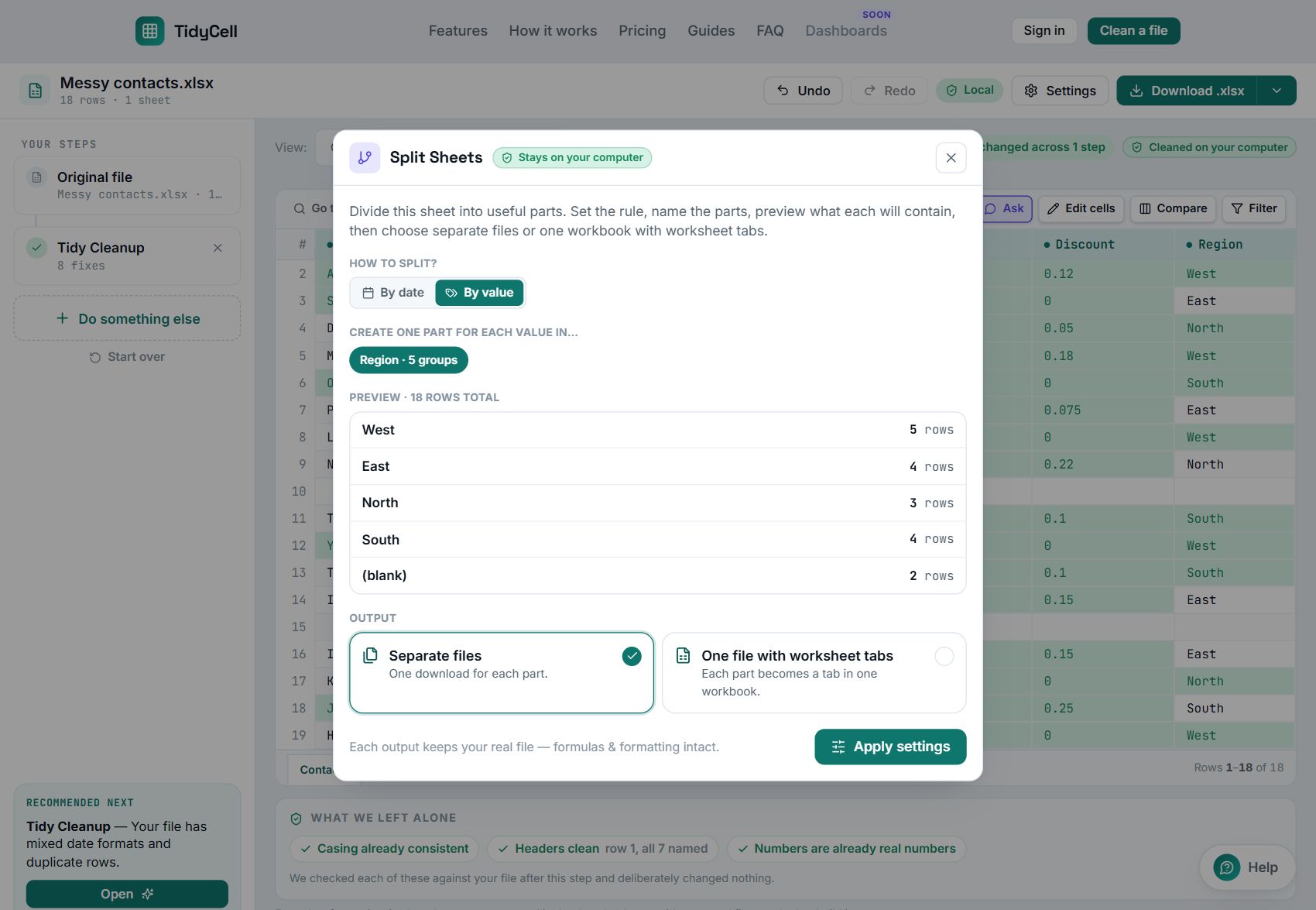
Split your file by any column — see the parts before you download.
Open your Excel or CSV in the browser, preview one bucket per value, then download separate files or one workbook with tabs. Split Sheets is a Pro feature; your workbook is never uploaded.
Split my Excel fileCommon questions
Can I split by date instead of a category?
Yes. In TidyCell, By date splits your rows into two named parts around a date — for example, everything older than three years into an "Archive" file and the rest into your working file. Natively, you'd filter the date column or group it in a PivotTable.
What happens to rows with a blank category?
TidyCell puts rows with no value into their own (blank) group, so they're never dropped — you can see the count in the preview and decide whether you want that file. Doing it by hand, remember to filter for blanks explicitly so those rows don't disappear.
What about workbooks with several sheets?
The split runs on the one sheet you choose. In Separate files mode, your other sheets come along untouched in each output, so you get complete workbooks. The worksheet-tabs output is designed for a single plain data sheet.
Does this work with a CSV?
Yes — drop a CSV the same way and split it by any column. A CSV is a single sheet of plain values, so it splits cleanly; you get real, tidy files back for each value.
Curious how your file stays yours through all of this? Cleaning and splitting happen locally in your browser — see how TidyCell works.
The TidyCell Team · Reviewed July 21, 2026. The native Excel steps in this guide were verified against Microsoft's official documentation, and the behavior described here was checked against the current TidyCell product.