Convert Numbers Stored as Text to Real Numbers in Excel
The TidyCell Team · Reviewed July 28, 2026
When Excel stores numbers as text, SUM returns 0, sorting goes alphabetical, and every lookup against that column misses. The quickest native fix is to select the cells, click the yellow warning diamond, and choose Convert to Number. When that doesn't appear — or the column is a mix of amounts, currency symbols and the occasional note — you need something that reads the whole column, shows you every change before it happens, and leaves alone what isn't a number.
First, confirm it really is text
Four tells, in the order they usually give it away:
- The values hug the left edge of the cell. Excel right-aligns real numbers and left-aligns text. A column that suddenly lines up on the wrong side is the fastest visual check there is.
- A little green triangle sits in the top-left corner of each cell — Excel's "number stored as text" error indicator.
- Select the column and look at the status bar. Real numbers show Sum and Average. Text shows only Count.
=ISTEXT(B2)returns TRUE, or=ISNUMBER(B2)returns FALSE. That's the definitive answer.
Here's the shape of the problem — an export where every amount and discount is a string:
| Order | Customer | Amount | Discount |
|---|---|---|---|
| SO-1001 | Acme Co | $4,200.00 | 12% |
| SO-1002 | Bright Labs | $980.50 | 0% |
| SO-1003 | Northwind Ltd | $12,340.00 | 5% |
| SO-1004 | Acme Co | ($150.00) | 0% |
| SO-1005 | Cobalt Group | $7,615.25 | 18% |
| SO-1006 | Delta Foods | pending | 7.5% |
Every value in Amount and Discount above looks like a number to you and reads as a sentence to Excel. =SUM(D2:D7) returns 0.
Why Excel does this
- A CSV or text import. The single most common cause — the import wizard typed the column as Text, or the file arrived with quoted values.
- An export from another system. ERP, accounting, banking and booking systems write amounts as formatted strings, symbol and all.
- A leading apostrophe (
'1200) — invisible in the cell, and an explicit instruction to Excel to treat the entry as text. - A currency symbol, a thousands separator, or a percent sign baked into the value rather than applied as a number format:
$1,200.00and45%as literal characters. - Accounting negatives written as
(500)instead of-500. - Stray whitespace — a trailing space, or a non-breaking space (
CHAR(160)) from a web or PDF paste. - The cell was formatted as Text before anything was typed into it. Re-formatting it as Number afterwards changes nothing; the value is already a string.
- A locale mismatch. European figures written
1.234,56pasted into a workbook expecting1,234.56— and vice versa.
The five native fixes, and what each one costs you
1. The error-check dropdown → Convert to Number
Select the range, click the yellow warning diamond that appears beside it, and choose Convert to Number. This is the right first move: it's two clicks and it preserves your formatting. Where it fails: the indicator only appears for values Excel itself has flagged. A cell holding $1,200.00 or (500) as literal text is, as far as Excel is concerned, just text — no diamond, no offer. It also won't appear if background error checking is switched off.
2. Paste Special → Multiply by 1
Type 1 into an empty cell, copy it, select your column, then Paste Special → Multiply. Arithmetic forces Excel to coerce each string to a number. Where it fails: Paste Special also pastes the copied cell's format, so your currency display, decimal places and alignment can be flattened in the process. Anything that can't be coerced turns into #VALUE! — and if you then filter those out, you've quietly deleted rows.
3. VALUE() and NUMBERVALUE()
=VALUE(B2) in a helper column, then copy → Paste Values back over the original. NUMBERVALUE() is the better one for imported data because you can tell it which characters are the decimal and grouping separators — =NUMBERVALUE(B2,",",".") reads a European 1.234,56 correctly. Where it fails: VALUE("(500)") returns #VALUE!, not -500. Any non-numeric entry errors out, so a column with one pending in it produces a column with one #VALUE! in it. And it's a helper column, which means a second pass to remove.
4. Text to Columns
Select one column, Data → Text to Columns → Next → Next → Finish. The wizard re-parses each value on the way back into the cell, which strips currency symbols and separators as a side effect. Genuinely fast for one clean column. Where it fails: it works on one column at a time, it re-parses using your machine's locale (so European decimals get misread unless you set the Advanced options), and any value it reads as a date — 1-2, 3.4 — comes back as a date. That last one is the classic silent corruption.
5. Power Query
Data → From Table/Range, right-click the column, Change Type → Using Locale…, pick Number and the source locale. This is the most correct answer for a file you'll receive again next month, because the transformation is saved and re-runs on refresh. Where it fails: it's a real learning curve for a one-off, unconvertible values become null (silently — you have to go looking for the errors), and the output is a new query table rather than your original sheet.
The case none of them handle well
A column that's mostly numbers with a few human entries in it — pending, see attached, TBC, n/a. Every method above forces a choice you shouldn't have to make: VALUE() errors on them, Paste Special leaves #VALUE! behind, Power Query nulls them out, and Text to Columns may reinterpret them. The notes are real information. You want the numbers converted and the notes left exactly where they are.
How TidyCell converts a column
Open your file in the TidyCell cleaner — it opens in your browser, nothing is uploaded — and open Numbers & Currency. It scans every column, finds the ones that are text pretending to be numbers, and shows you a row per column with a real before → after taken from your own file.
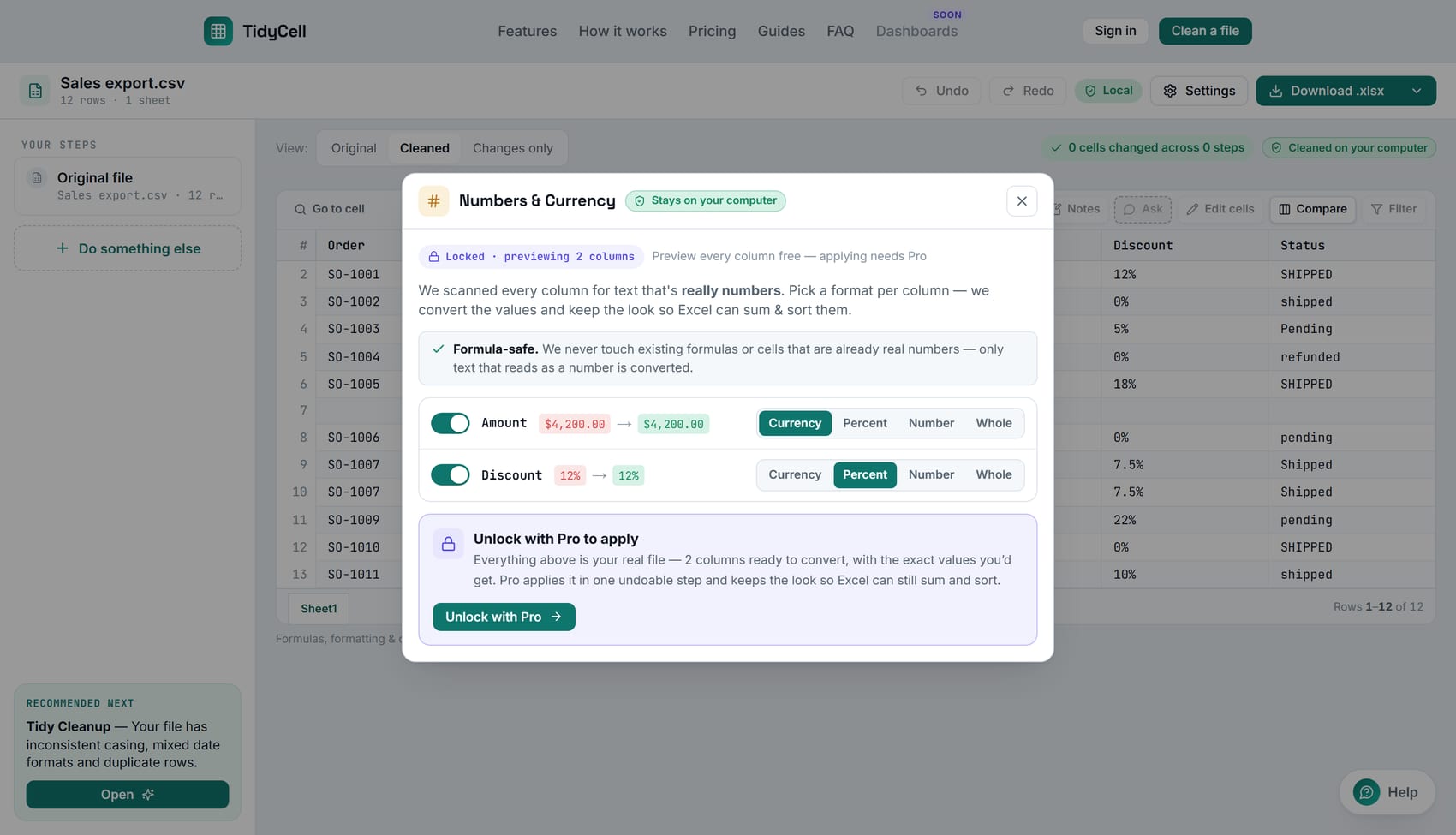
$4,200.00 still reads $4,200.00; it's just a real number now, so Excel can sum it.What it actually reads
- Currency symbols —
$ € £ ¥ ₹ ₩ ฿ ₪— and three-letter codes (1200 USD,EUR 45,50). - Thousands separators, in either convention.
- Percentages —
45%becomes the real value0.45displayed as45%, which is what makes it multiply correctly. - Accounting negatives —
(500)becomes-500, the caseVALUE()chokes on. - Padding and stray spaces around any of the above.
It reads the column's decimal convention, not your computer's
1.234,56 means one thousand two hundred thirty-four in most of Europe. Naively stripping commas and keeping dots turns it into 1.23456 — a silent thousand-fold error on a column the tool was confident about. TidyCell works out the decimal separator from the column's own values, and when a single value's shape contradicts the rest of its column, it refuses that value rather than guess at it. No locale settings to configure.
It keeps the look
Each column gets a target format you choose — Currency, Percent, Number or Whole — pre-selected from what the values and the header actually say (an Amount or Price column defaults to currency; a Rate or Margin column to percent). TidyCell then writes a real Excel number format onto the converted cells, using your column's currency symbol — a euro column comes back in euros, not stamped with a dollar sign. The cell looks the same after conversion. It just sums now.
Nothing is forced, and nothing goes missing
That column with pending in it: the numbers convert and pending stays exactly as it was. No #VALUE!, no null, no dropped row. And so that "left as text" can never quietly mean "lost", every value TidyCell keeps comes back highlighted red in the downloaded workbook with a note attached explaining why it wasn't converted. You can see what it skipped without hunting for it.
Make the column add up again.
Open your Excel or CSV in the browser and see every value Numbers & Currency would convert, before → after, for free. Applying it is Pro; your workbook is never uploaded.
Fix my numbersWhat it deliberately doesn't touch
This is the half that matters more than the conversion, because it's where automated cleaners usually do the damage:
- Your formulas. Formula cells are excluded structurally, not by inspecting their result — so a formula that returns text is safe too. Convert a column and the formulas pointing at it start working; they don't get overwritten.
- Cells that are already real numbers. Only strings are candidates.
- ID-shaped columns. A column is only offered when most of its values read as numbers and at least one wears a genuine disguise — a currency symbol, a percent sign, a thousands separator, accounting parentheses. Plain digit strings don't qualify, which is why ZIP codes, part numbers and SKUs keep their leading zeros: the tool never proposes them in the first place.
- Values that mean something different. A stray
45%sitting in an amount column is not converted into0.45— it's a different kind of value, so it's kept and flagged instead. - Everything else in your workbook. The download mutates the file you uploaded rather than rebuilding it, so your other sheets, cell formatting, merged cells, column widths, charts and pivot tables come back intact.
You can also see the whole thing before you decide: the preview above — every column, every before → after — is free and needs no signup. Applying the conversion is a Pro feature.
Common questions
Does this work with a CSV?
Yes. A CSV is the most common source of this problem, and TidyCell reads it the same way — drop it, convert the columns, and download a real .xlsx (or a CSV back, if that's what the next system wants).
Will it break my formulas?
No. Formula cells are never written to. In practice the opposite happens: the SUM that was returning 0 starts returning the right answer, because the cells it points at are finally numbers.
What about European number formats?
Handled, and handled per column rather than per machine. 1.234,56 and 1,234.56 in two different columns of the same file are both read correctly, and a value whose shape disagrees with its own column is left alone rather than mis-scaled by a factor of a thousand.
Is there anything it won't convert?
Scientific notation (1.2E+05) is left as text today. So is anything with letters attached that aren't a currency code — 12 kg stays 12 kg, because guessing that you meant 12 is exactly the kind of decision a cleaner shouldn't make on its own. If you need to pull the number out of a value like that, that's a column-splitting job, not a conversion.
Does my file get uploaded?
No. The scan, the preview and the converted download all run in your browser — the workbook never leaves your computer. See how TidyCell works.
The TidyCell Team · Reviewed July 28, 2026. The native Excel steps in this guide were verified against Microsoft's official documentation, and the behavior described here was checked against the current TidyCell product.