Split One Excel Column Into Multiple Columns — even Without a Delimiter
The TidyCell Team · Reviewed August 19, 2026
One column is holding four things at once. A product code with the size and colour baked into it. A location that's really a city, a state and a postcode. A machine ID that runs the plant, the date and the serial together with nothing in between. You know where the pieces break — you can see it — and Excel keeps asking you for a delimiter that isn't there. This guide covers every native way to split a column, the exact point each one gives up, and what to do about the shape that defeats all of them.
Start here: does your column have a real separator?
This is the only question that matters, and it decides everything that follows. If your values look like Smith, John or Red | Large | Cotton, you have a delimiter and the native tools will serve you well. If they look like SKU-A1042BLK or TX20240315MC881907A, you don't, and most of the advice you'll find is written for somebody else's problem.
With a delimiter: Text to Columns is the right answer
Select the column, Data → Text to Columns → Delimited, tick your separator, press Finish. It's fast and it works. Three things to know before you press it:
- It overwrites the columns to its right without asking. Insert enough blank columns first, or you'll silently destroy whatever was next door.
- It converts as it goes. A piece that looks like a number becomes a number, which is how
007becomes7and a part number becomes a date. Set each destination column to Text in step 3 of the wizard if that matters — and for part numbers and zero-padded codes, it always matters. - It's a one-shot operation, not a rule. Next month's export needs the whole thing done again by hand.
Without one, you're into the four workarounds
Here is the honest state of the native options for a column with no separator, and where each one stops being useful.
| Method | Best when | Where it gives up |
|---|---|---|
| Text to Columns (Delimited) | There is a real separator | Needs a delimiter; overwrites the columns to its right; converts types as it goes |
| Text to Columns (Fixed width) | Genuinely fixed-width exports | Any variation in field width shifts every row after it |
| Flash Fill (Ctrl+E) | A quick one-off on tidy data | Produces values, not a rule; guesses wrong silently mid-column |
| LEFT / MID / FIND | You need it in a formula anyway | Fixed positions again, and one bespoke formula per boundary |
| Power Query | A pipeline you'll re-run monthly | Five predefined transitions and no others; query editor; unnamed output columns |
Why "Fixed width" almost never survives real data
Text to Columns has a Fixed width mode, and on a genuinely fixed-width mainframe export it's perfect. The trouble is that most run-together data only looks fixed width in the first ten rows. Consider a plant transaction code — plant, date, machine, serial, grade:
| The cell | Plant | Date | Machine | Serial | Grade |
|---|---|---|---|---|---|
| TX20240315MC881907A | TX | 20240315 | MC | 881907 | A |
| OH20240902LN1234567B | OH | 20240902 | LN | 1234567 | B |
| NC20231108CN40912C | NC | 20231108 | CN | 40912 | C |
| TXN20240130PR77310S | TXN | 20240130 | PR | 77310 | S |
| MI20220719WD9002145A | MI | 20220719 | WD | 9002145 | A |
Two-letter plants and a three-letter one; serials from five digits to seven. No single set of character positions is correct for all five rows.
The plant is two characters until it's three. The serial is six digits until it's seven, or five, or three. Slice at character 2 and 10 and the fourth row loses its N. There is no set of fixed positions that's correct for all of them — the boundary isn't a position, it's a change of character type, and Fixed width has no way to say that.
The same problem defeats LEFT / MID / FIND
=LEFT(A2,2) and =MID(A2,3,8) are just Fixed width written out longhand, so they fail on exactly the same rows. You can get clever — =MIN(FIND({0,1,2,3,4,5,6,7,8,9},A2&"0123456789")) is the classic array trick for "where does the first digit start" — and it does work. But you need one of those per boundary, each one different, each one unreadable six months later, and the formula for "where does the second run of letters start" is meaningfully harder than the first.
Flash Fill: right until it quietly isn't
Ctrl+E is genuinely impressive. Type the first piece by hand, press it, and Excel infers the rest. Two reasons it doesn't close this out: it produces values, not a rule, so it never updates and can't be audited — and when its guess is wrong, it is wrong silently, in the middle of a long column, in a way that looks exactly like every correct row. On the codes above, it typically nails the first fifty and then meets the three-letter plant and shifts everything by one character without a word.
Power Query gets closest — and here's its actual limit
Credit where it's due: Power Query can do this, and most articles on this topic don't mention it. Split Column → By Non-Digit to Digit (and its four siblings — digit-to-non-digit, lowercase-to-uppercase, uppercase-to-lowercase, and by number of characters) will take TX20240315MC881907A apart correctly, at varying widths, because it's splitting on a transition rather than a position.
The limit is that those five transitions are the whole menu. If your boundary is "after the third piece, but only when there are four", or "before the size code, which is sometimes letters and sometimes not", there is no entry for it and you're into writing M by hand. And the cost of admission is real: you're in the query editor, your output is a new table rather than your sheet, and the columns arrive named Column1 through Column5. For a pipeline you'll run every month that's a fair trade. For a file somebody needs back this afternoon, it usually isn't.
The other way round: show it the split once
Column Parsing inverts the question. Instead of picking a rule from a menu and hoping your data fits it, you mark the split by hand on one cell and it works out the rule from your example.
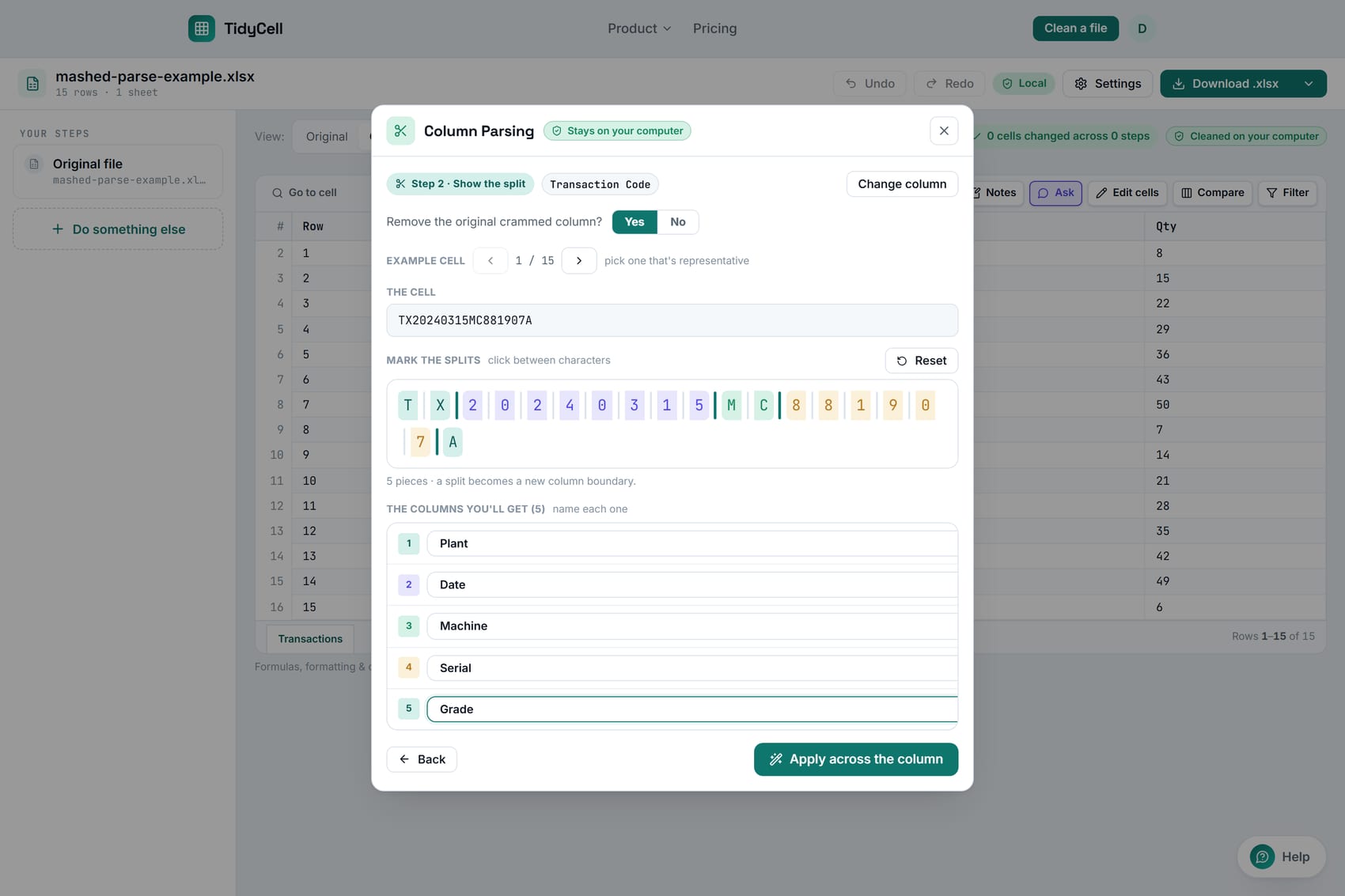
It generalizes by character type, not by position
This is the part that makes it work on varying widths. From your marked example it builds a pattern that describes each piece by what kind of characters it's made of — a run of letters, then a run of digits, then letters again — rather than by where they sat in that one cell. So a two-letter plant and a three-letter plant both match, and so does a three-digit serial next to a seven-digit one.
It tries the width-agnostic reading first, because that's the one that generalizes. If that's ambiguous — two runs of the same character type sitting next to each other, where "some digits then some digits" can't tell you where to cut — it falls back to the exact widths you demonstrated. Either way the inferred rule is re-run against your own example before it is accepted, and an inference that fails to reproduce the split you marked is thrown away rather than shipped.
It reads alphabets, not just A–Z
The character types are Unicode. José García, 北京2024ABC and Müller generalize the same way an ASCII value does. This is worth stating because the naive version of this feature — the one that only knows A-Z a-z 0-9 and treats everything else as a literal — freezes the accented character into the pattern at that exact offset, and then misses essentially every row of the column it was demonstrated on. Ours did, once. It doesn't now.
If there is a delimiter, it just splits it
You don't have to mark anything up when you don't need to. A comma, pipe, semicolon, tab, - or / is detected and split on arrival — the tool says which one it found and goes straight to naming the pieces. It also guesses sensible names from the content, so an @ becomes Email, eight digits become Date, five become ZIP. Every guess is an editable text box.
The rows that don't fit — the part that actually matters
Any tool can split the rows that are well behaved. What separates a safe tool from a dangerous one is what it does with the handful that aren't, and this is where most approaches quietly lose data.
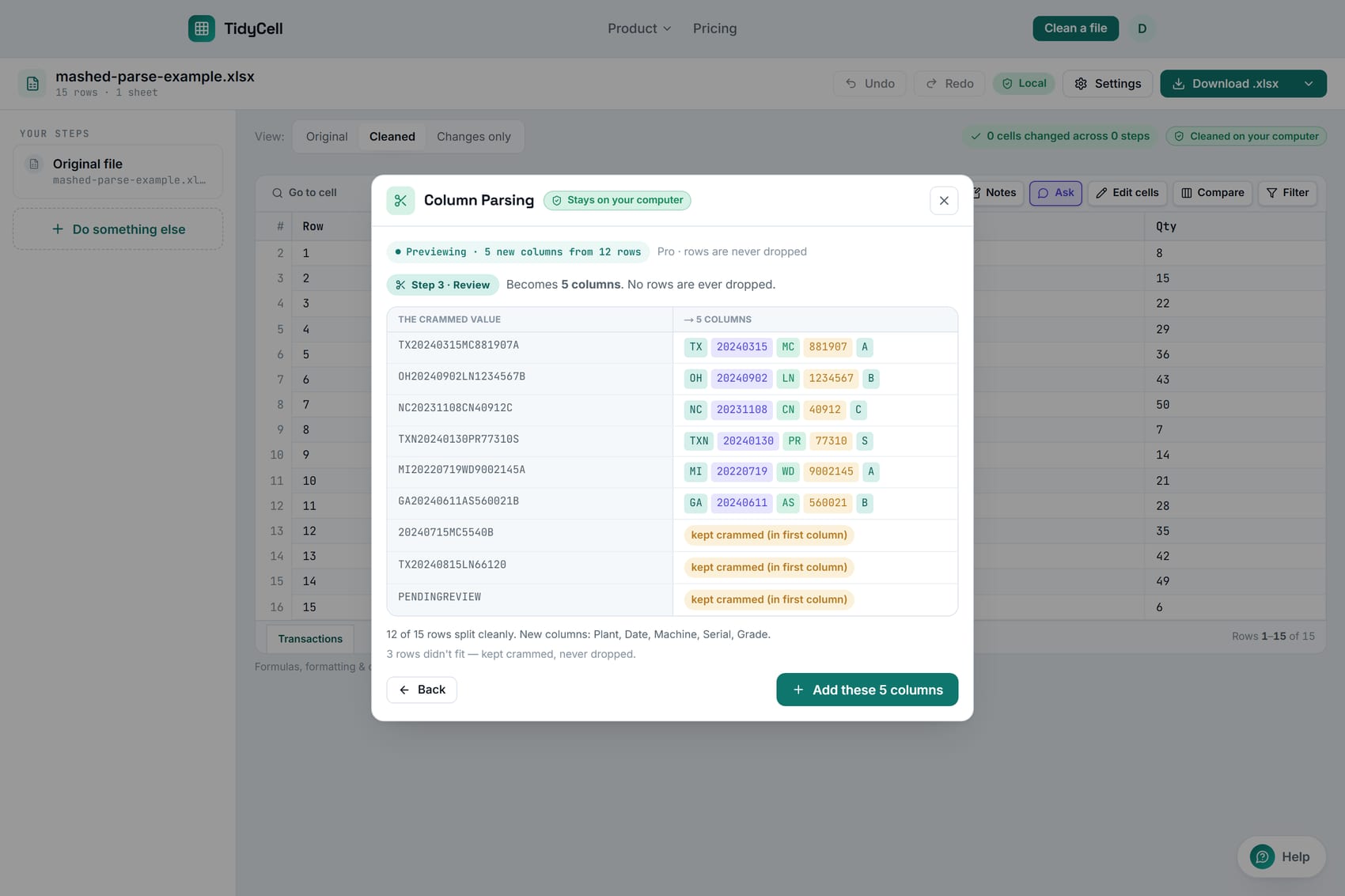
PENDINGREVIEW was never a transaction code in the first place.A row is never dropped, and never truncated
A value that doesn't fit the pattern is kept crammed — the whole original string survives, in the first new column if you asked for the original to be removed, or left where it was if you didn't. Every row still gains all the new columns either way, so the sheet keeps one consistent shape and nothing shifts.
The subtler guarantee is about truncation. When the rule is a delimiter split, the number of pieces is part of the rule. Demonstrate a two-piece split, meet a row with three pieces, and that row is a miss — not a haul of the first two. Without that rule, Cy, Denver, CO under a two-piece spec yields Cy and Denver, the original column gets removed because that's the default, and CO is gone for good while the preview calls the row clean. That was a real bug here and it is now a rule with a test on it.
What the review screen is actually telling you
"12 of 15 rows split cleanly" is counted across every row in your column, not sampled. If a lot of rows miss, it says so in as many words — that's a lot, so the split may be off — because a pattern that misses half the column is usually the wrong pattern rather than a column full of exceptions, and you're better off marking a different example than accepting it.
Where AI comes into it, and where it emphatically doesn't
The split itself is mechanical. Reading your marked example, building the rule and running it down the column involve no AI at all and no network — that all happens in your browser. AI is offered for one narrow job: when a small handful of values missed, it can be asked to split just those the same way. Specifically:
- It asks first, every time, and declining is a normal answer — the local split has already run and still applies; the leftovers simply stay crammed.
- Only the leftover values are ever sent — never the column, never the sheet, never the file. You see exactly which ones before you decide.
- Above twenty distinct misses it isn't offered at all. That many failures means the pattern is wrong, and no amount of per-value repair fixes a wrong pattern.
- A returned split is rejected unless it preserves the content. The pieces are checked back against the original characters, and anything lossy is thrown away — that row stays crammed instead. The model cannot cause data loss here even when it gets the answer wrong.
- Values that look like an SSN, a card number, a bank routing number or an IBAN are held back before the send, and the tool tells you it did that rather than letting them look like AI failures.
Show it the split once. It does the other 40,000 rows.
Open your Excel or CSV in the browser, mark where the pieces break on one cell, and name them. Rows that don't fit are kept whole, never dropped — and your file never leaves your computer.
Split a columnWhat it deliberately doesn't do
- It won't let you write a regular expression. There's no formula box, on purpose. You demonstrate the split; the pattern is inferred, verified against your own example, and then applied. A pattern nobody can read is a pattern nobody can check.
- It won't mark up an enormous cell. Past about 400 characters the by-hand editor would mean tens of thousands of clickable elements and a frozen tab, so it says so and offers you a shorter example from the same column instead — the rule you teach on that one still runs over every row.
- It won't add columns to a workbook it might damage. If your file carries charts, pivot tables or Excel Tables, TidyCell edits the original bytes in place to keep all of that intact — and inserting columns into that structure is the one thing it won't risk. It tells you in a sentence rather than doing it quietly.
- It doesn't upload your file. Reading the workbook, marking the split, running the rule and building the download all happen on your computer. See how TidyCell works.
One thing to set expectations on: Column Parsing is a Pro tool, so it doesn't open for a free visitor — you'll land on a page describing exactly what it would do to your file rather than inside the tool itself. If you'd rather try the product before you decide, Fix is free and works on the same file.
Common questions
How do I split first and last name in Excel?
If they're separated by a space, Text to Columns with Space as the delimiter takes thirty seconds and you should just use it. The two cases where it bites: middle names and suffixes give you a third and fourth column you didn't plan for, and names like van der Berg or De La Cruz get carved up wrongly by any rule that counts spaces. There is no clean automatic answer to the second one — in any tool — so check the tail of the column by eye whichever route you take.
Can I split into rows instead of columns?
Not with Text to Columns, which only ever goes sideways. Power Query's Split Column dialog has a Split into: Rows option under Advanced, and that's the native answer. Column Parsing produces columns.
Why did my split turn 007 into 7, or my code into a date?
Because Text to Columns applies General formatting to each destination column unless you tell it otherwise. Re-run it and set the affected columns to Text in step 3 of the wizard. This is also worth knowing in the other direction — if a column of yours has already been mangled into real numbers or dates, that's a separate repair job.
The pieces are in the wrong order — can I rearrange while I split?
Yes. A demonstration that puts the pieces back in a different order, with your own punctuation between them, is recognised as a rearrangement and generalized like any other rule — that's how John Smith becomes Smith, John down the whole column.
Will it work on a CSV?
Yes — CSV, TSV and Excel files all take the same path, and you can download the result in any of them.
My column has a delimiter but the number of pieces varies row to row.
This is the case worth being careful about, and it's where Text to Columns is most dangerous: it will happily fill the columns it can and leave you to notice the ragged ones. Column Parsing treats a differing piece count as a miss and keeps that row whole, so the rows that need your judgement are listed for you rather than half-processed. Split on the pieces that are always present, then handle the remainder as its own pass.
The TidyCell Team · Reviewed August 19, 2026. The native Excel steps in this guide were verified against Microsoft's official documentation, and the behavior described here was checked against the current TidyCell product.