VLOOKUP Returns the First Match: How Duplicate Values Cause Wrong Results
The TidyCell Team · Reviewed September 25, 2026
VLOOKUP has a dangerous success case. If the lookup value appears twice in the source table, Excel does not return an error or warn you that the answer is ambiguous. It returns the first matching row it encounters. The formula looks healthy, the cell contains a plausible value, and the wrong answer can move straight into a report.
Why VLOOKUP returns the first match
VLOOKUP searches from the top of its table array downward. With exact matching enabled, it stops as soon as it finds the lookup value. If customer AC-1188 appears twice, VLOOKUP never asks whether the two rows agree. It simply uses the first one.
| Customer ID | Tier | Updated | What VLOOKUP returns |
|---|---|---|---|
| AC-1188 | Growth | May 5, 2024 | Growth |
| AC-1188 | Scale | September 9, 2025 | Ignored |
The formula succeeds, but the answer is stale because the older row appears first.
In that example, both formulas are valid. The result depends only on which duplicate happens to be higher in the source sheet. Sort the source differently and the answer may change without a single formula changing. That is why this problem is more serious than #N/A: an obvious error demands attention; a believable wrong value does not.
First, prove whether the lookup key is duplicated
Do not inspect only the row VLOOKUP returned. Check the entire lookup column. The quickest native Excel options are Conditional Formatting or a helper column with COUNTIF.
- Select the lookup-key column in the source table.
- Choose Home → Conditional Formatting → Highlight Cells Rules → Duplicate Values.
- Filter by the highlight and compare the fields you intended to return.
A helper column is better when you need a count. If the keys are in column A, use=COUNTIF($A:$A,A2) and filter for values greater than 1. A count of 2 proves the key is not unique; it does not tell you which of the two rows is correct.
Choose a rule that matches what the rows mean
“Remove duplicates” is not a rule. Two rows with the same ID may be accidental copies, or they may be two real transactions, two status updates, or two line items. The right answer depends on the data:
- The newest row: use a date column when the source contains revisions or status updates.
- The first or last row: valid only when sheet order has a documented meaning.
- Add them up: useful for amounts spread across several transactions with the same key.
- Count them: return the number of matching records instead of pretending there is one.
- List them all: preserve every matching value when each one matters.
If none of those rules describes the data, stop the lookup and fix the source. An explicit refusal is safer than a value that merely looks right.
Why XLOOKUP does not solve duplicate matches by itself
XLOOKUP improves the formula: it defaults to exact match, can look in either direction, and lets you specify what to show when nothing is found. But its default duplicate behavior is still to return one result. You can reverse the search to get the last match, yet that only changes which silent choice Excel makes. It does not prove the key is unique.
Dynamic-array formulas can return every match—for example, FILTER can spill all matching rows—but that moves the decision to the next step. You still need to decide whether you wanted the newest value, a total, a count, or the full list.
Make the ambiguity visible before bringing columns over
Bring Columns Over checks the key before it writes anything. When an ID appears more than once in the source, it names how many duplicated IDs it found and how many rows in your main sheet are affected. The apply button stays blocked until you choose what multiple matches mean.
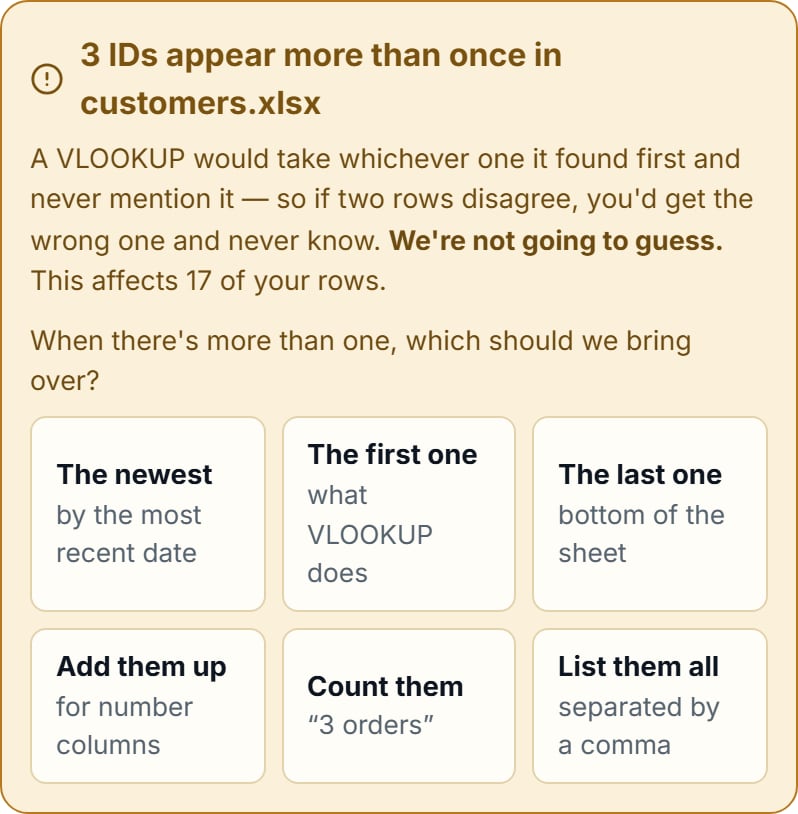
The available choices are tied to the data. “The newest” appears only when the source has a date-like column. “Add them up” is for numeric results. Whatever rule you choose is recorded with the workbook step, so the result is explainable later instead of depending on accidental row order.
Find the duplicate IDs before they choose the wrong answer for you.
Open your files in the browser, see exactly which rows are affected, and choose what multiple matches mean before adding a column. Preview the full answer free; applying it needs Pro.
Check my lookup keysWhat TidyCell deliberately leaves alone
- It does not delete the duplicate source rows. They may be legitimate records; the match rule decides how to read them, not whether they should exist.
- It does not choose “first” on your behalf. That would reproduce VLOOKUP's quietest failure mode with a friendlier interface.
- It keeps every row in your main sheet. Rows without a match remain in place with blank new cells, unless you explicitly set them aside for review.
- It does not upload either file. Key detection, duplicate analysis, matching, and the finished download run in your browser. See how TidyCell works.
Common questions
Can VLOOKUP return the last match instead?
Not cleanly with ordinary VLOOKUP. XLOOKUP can search from bottom to top, but “last” is only correct when sheet order carries real meaning. A date-based newest rule is safer for revision histories because it reads the date rather than trusting the current sort order.
How do I return all duplicate matches?
In current Excel, FILTER can return every matching row and spill the results. If you need the values in one cell, combine it with TEXTJOIN. In TidyCell, choose “List them all”; long lists are shortened with an honest note rather than silently cut off.
Should I remove duplicates before using VLOOKUP?
Only after you know they are accidental copies. If the repeated ID represents several orders, invoices, or updates, deleting rows destroys information. Decide whether you need one record, the newest record, a total, a count, or the full set first.
What if VLOOKUP returns #N/A instead of the wrong row?
That is a different failure family: spaces, invisible characters, number-versus-text storage, or a value that is genuinely absent. Work through the diagnostic guide for a VLOOKUP that returns #N/A.
The TidyCell Team · Reviewed September 25, 2026. The native Excel steps in this guide were verified against Microsoft's official documentation, and the behavior described here was checked against the current TidyCell product.